Documentation menu: Getting started
Getting started
Five steps, in order. The first two take about 2 minutes and give you traffic reports. The next two tie that traffic to revenue. The last one lets you ask your own AI assistant about the numbers.
Everything below happens on the Setup page of your dashboard, which keeps a checklist of what is done.
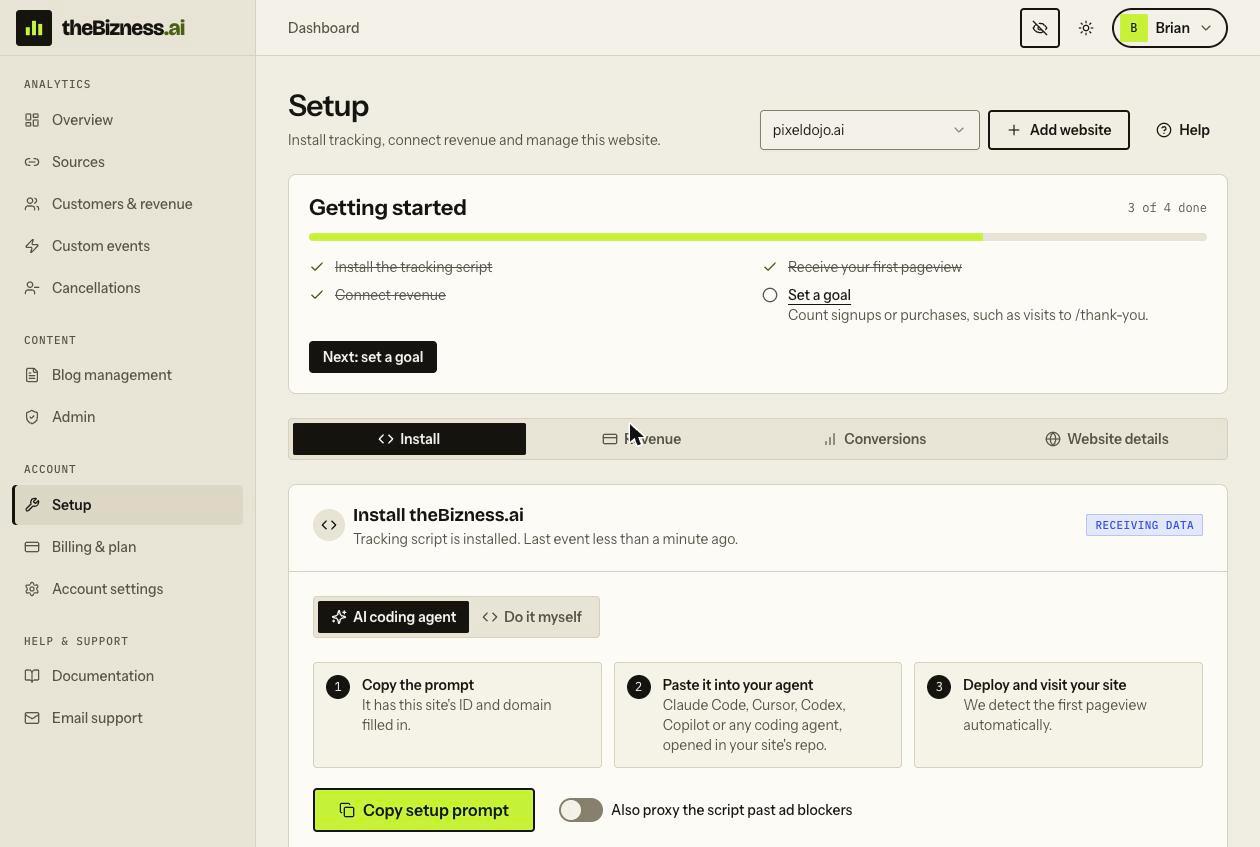
1.Install the tracking script
- Open Setup and stay on the Install tab.
- Using an AI coding agent? Choose Copy setup prompt and paste it into Claude Code, Cursor or Codex in your site's repository. It already contains your website ID and domain.
- Doing it by hand? Choose Do it myself, copy the one-line script tag and paste it into the
<head>of every page. - Deploy your site.
Framework-specific steps: installation guides for Next.js, React, Vue, WordPress, Laravel and Django.
2.See your first visit
- Open your live site in a browser. The script does nothing on localhost.
- Go back to Setup. The Install tab shows Receiving data within a few seconds.
- Open Overview to see the visit.
Nothing arriving? Add data-debug="true" to the script tag and check the browser console, or see how to verify the install.
3.Connect Stripe or Whop
- On Setup, open the Revenue tab and pick Stripe or Whop.
- Create the API key the tab describes (a restricted key for Stripe; a key with the listed permissions for Whop) and paste it in.
- Choose Connect. We create the webhook that reports each sale, refund and cancellation.
- Pass the website, visitor and session IDs into your checkout metadata, using the snippet on the same tab. This is what ties a sale to the visit that led to it.
Full walkthrough with code: revenue attribution.
4.Set a goal
- On Setup, open the Conversions tab.
- Under Add a rule, name the goal (for example Newsletter signup) and enter the page people reach when they complete it, such as
/thank-you. - Choose Add rule. Each visit to that page now counts as a conversion.
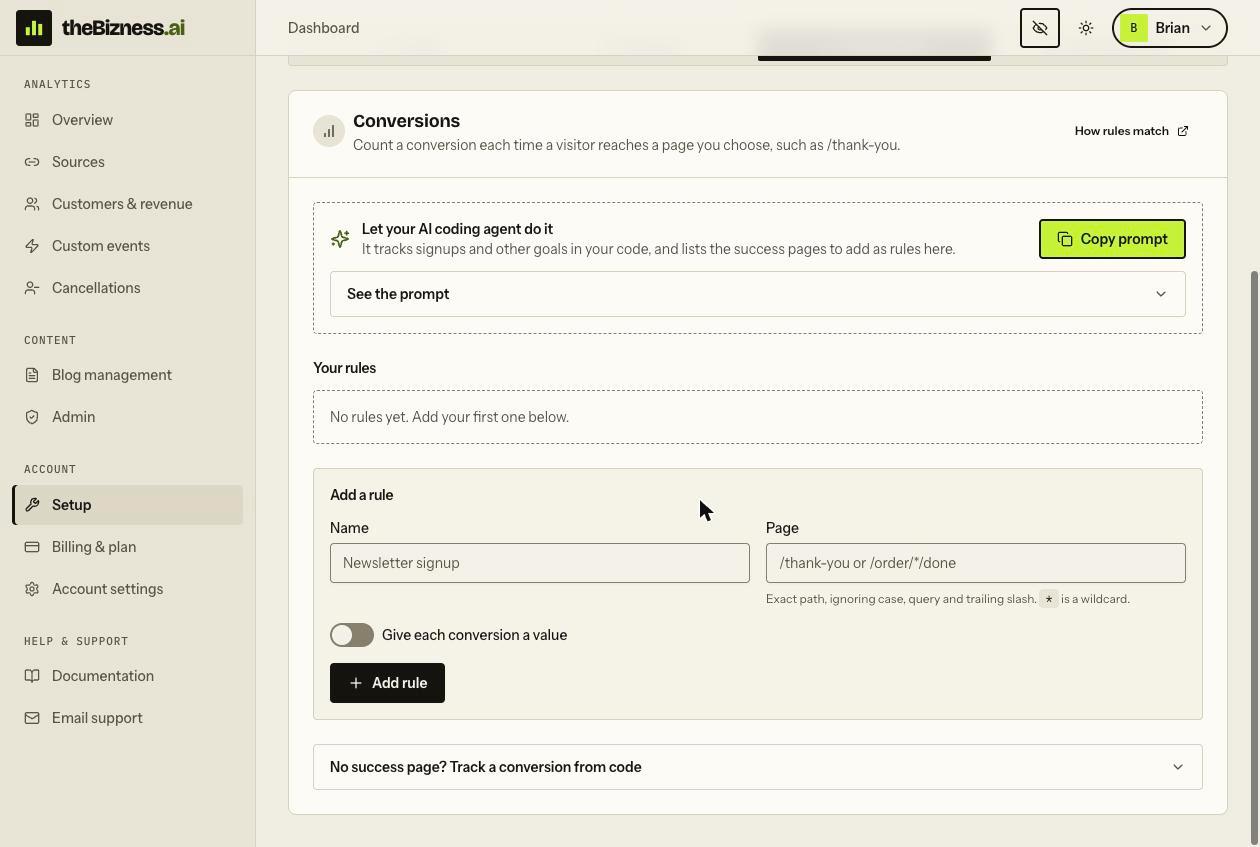
No success page? Track a goal from code instead: custom events.
5.Connect your AI assistant
theBizness.ai has an MCP server, so Claude, ChatGPT, Cursor and other assistants can read your traffic and revenue and answer questions about them. Access is read-only.
- In claude.ai or ChatGPT, add a custom connector with this address:
https://thebizness.ai/api/mcp - Sign in to theBizness.ai when asked and allow read access.
- Ask something like "Which traffic source made the most revenue this month?"
Coding tools use a token instead, created under Settings > AI assistants. Details for every client: MCP server guide.